

Ask your AI to send it
Connect Claude or another AI assistant to eSignStack. Then ask it to send documents, chase signers and find signed copies.
Send the mutual NDA to John Hancock at john@example.com.
I made a draft from your Mutual NDA template, with John Hancock as the signer. Here’s the preview.
Mutual NDA, draft preview (PDF)Send it to john@example.com?
Yes, send it.
Sent. John will get an email to sign.
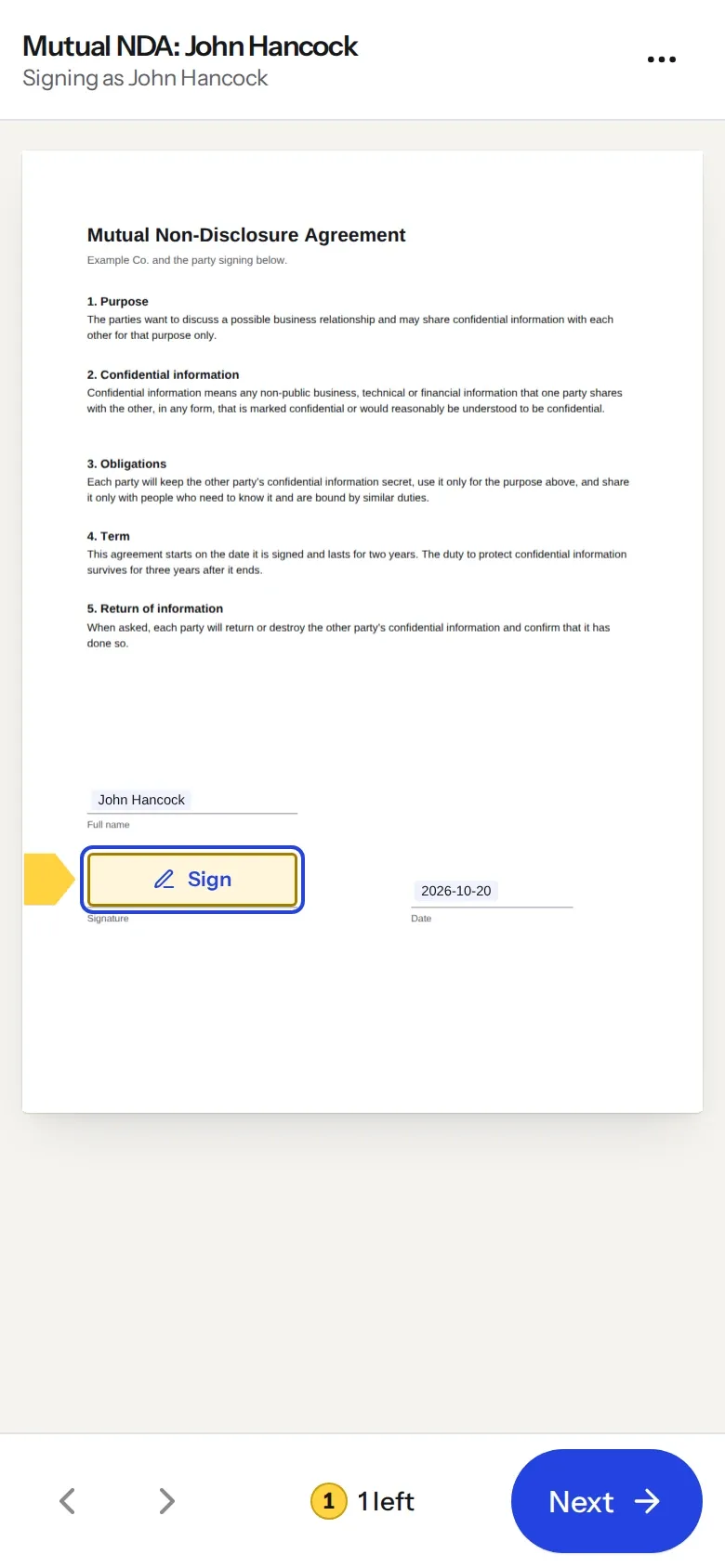
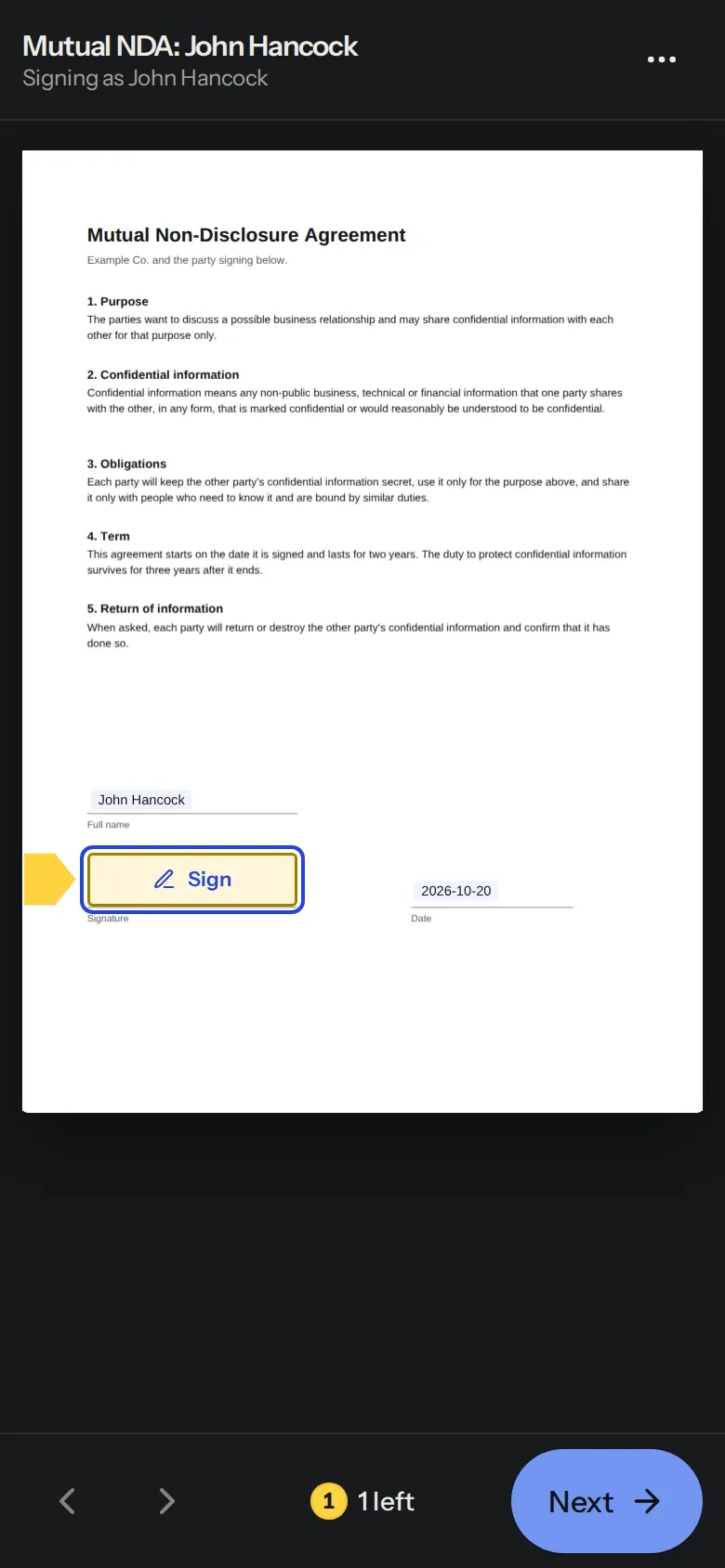
What John sees, on any device.
Things you can ask
Say it the way you’d say it to a colleague.
“Send the mutual NDA to John Hancock at john@example.com.”
Makes a draft from your template and checks with you before sending.
“Send ~/Downloads/lease.pdf to me to sign.”
Uploads the file from your computer over a private one-time link, then sets it up for signing.
“Who hasn’t signed the offer letter yet?”
Looks up each envelope and who it’s waiting on.
“Remind everyone who still needs to sign.”
Emails a reminder to whoever’s turn it is.
“Give Richard Roe five more days.”
Moves the deadline, and can email the people who haven’t signed.
“Get me John Hancock’s signed NDA.”
Gets a short-lived link to the signed PDF and its certificate.
You stay in charge
It asks before sending
Our server tells your assistant to confirm the document and the people with you before it sends or voids anything.
People sign for themselves
Your assistant can’t sign, approve or decline for anyone. Signers get their own email and sign in their browser.
You choose what it can do
When you connect, you pick the workspace and what it may do, from read only to sending. Disconnect it any time.
Try it on test data
Connect in test mode to send watermarked test envelopes that are never billed.
Add eSignStack to your assistant
In Claude, open Settings, then Connectors, and add a custom connector with this address. Other assistants have a similar setting.
https://esignstack.app/mcpClick Connect
Sign in to eSignStack, pick the workspace and what your assistant may do, and click Allow.
Ask
Say what to send and to whom. Your assistant shows you a preview before anything goes out.
Where it works today
Sign in with one click:
- Claude
- ChatGPT
- Claude Code
Claude works on the web, desktop and phone. In ChatGPT, turn on developer mode first. Codex, Cursor, VS Code and your own scripts can connect with an API key from Developers, then API keys.
It all shows up in eSignStack
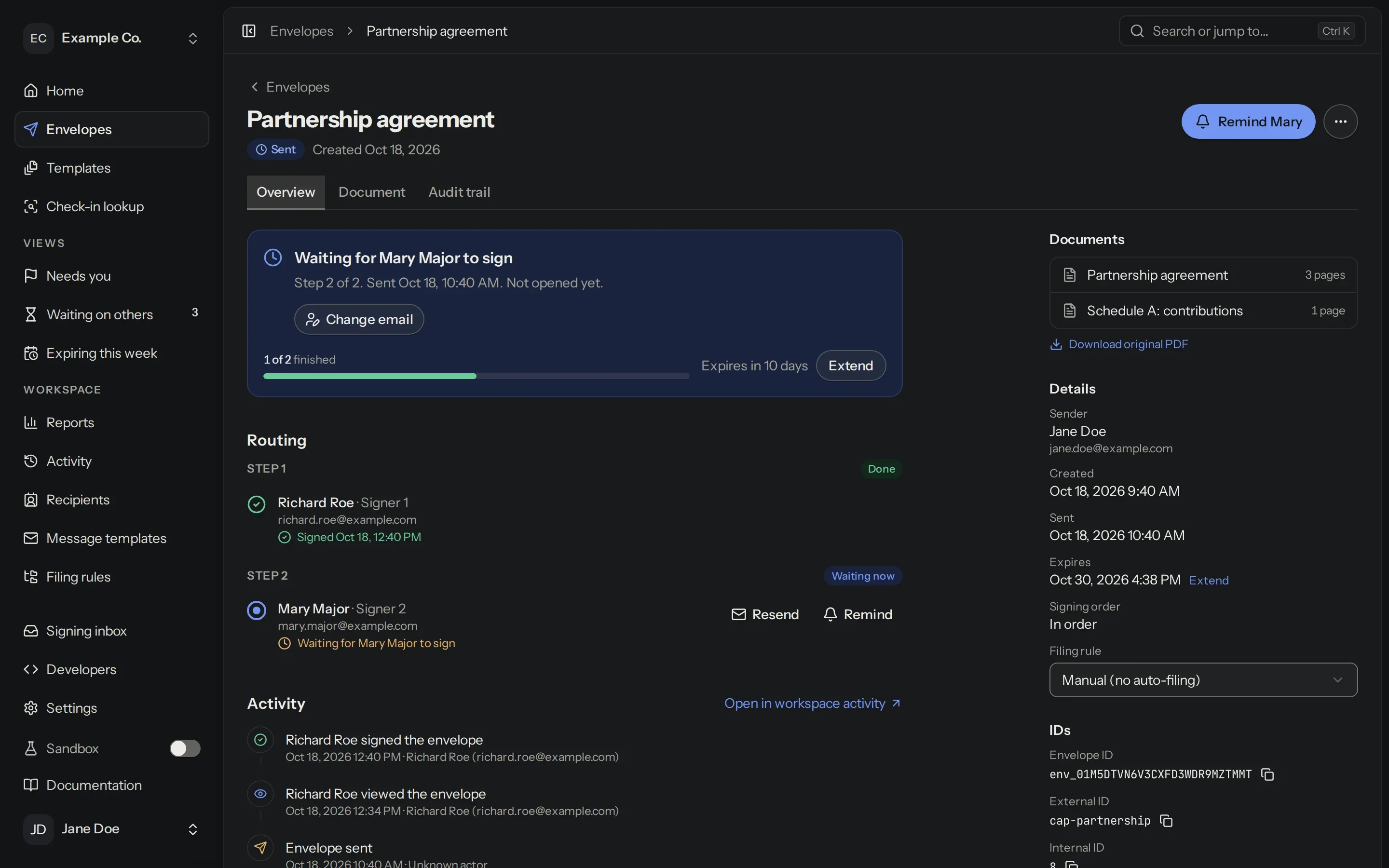
What your assistant sends sits in your account with everything else, and each envelope’s history shows who changed what.
Start free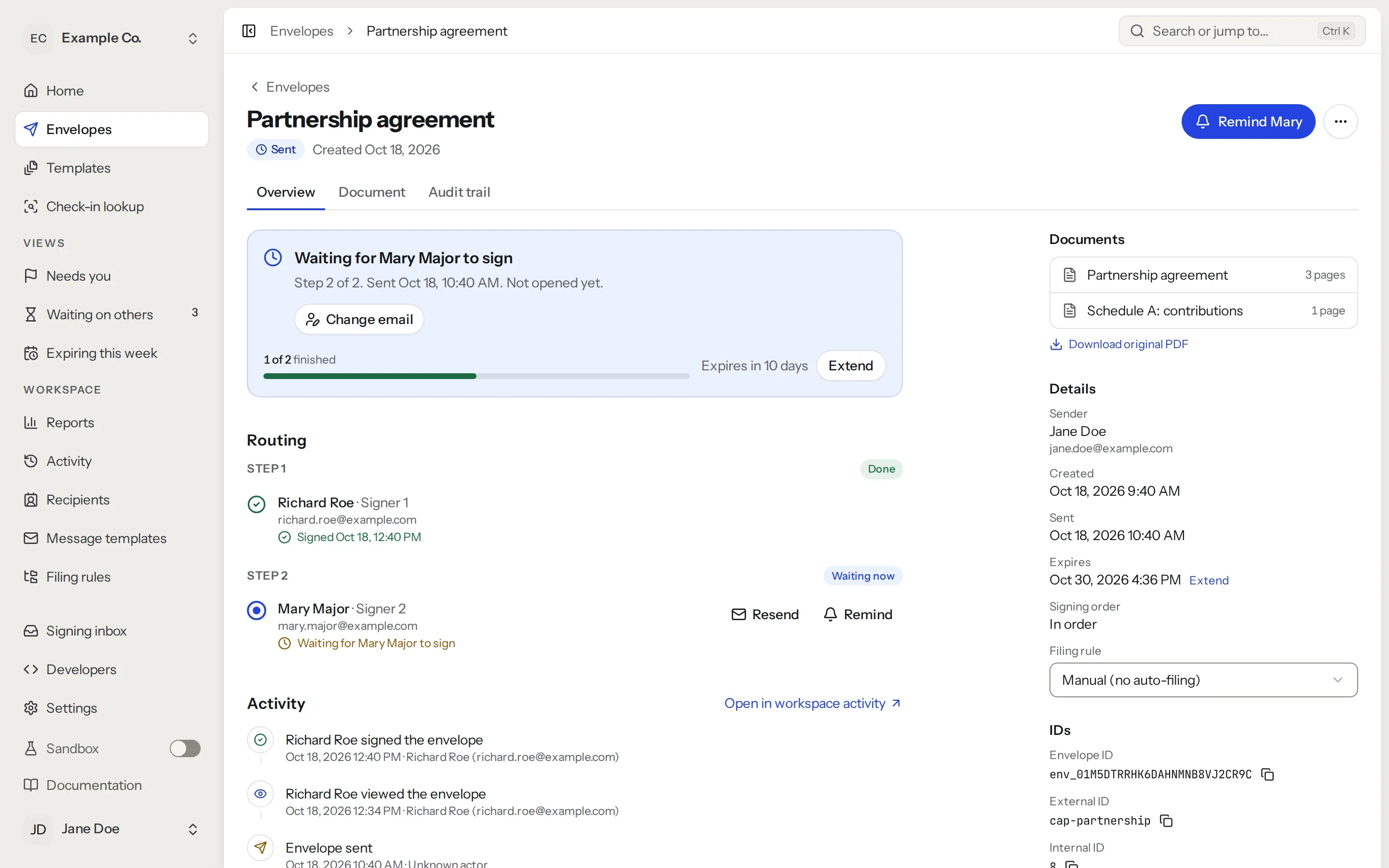
Questions
Do I need to be technical?
No. You paste one web address into your assistant’s settings, click Connect and sign in to eSignStack. You only do it once.
Read the MCP setup guideDoes it work with ChatGPT?
Yes. Turn on developer mode in ChatGPT’s settings, add a connector with the address https://esignstack.app/mcp, and click Connect.
Can it send a file from my computer?
Yes. Assistants that can run commands on your computer, like Claude Code, Codex and Cursor, upload it over a private link that works once and expires after 15 minutes. Your document is never put on a public site.
Can my assistant sign documents for me?
No. No tool signs, approves or declines for anyone. Each person signs for themselves, from their own email.
Does it cost extra?
No. MCP comes with every plan, Free included. Envelopes your assistant sends count toward your plan’s API and MCP envelopes, for example 50 a month on Starter. Free includes them in its 5 a month.
Compare plansCan I try it without emailing real people?
Yes. Choose Test when you connect. Test envelopes are watermarked and never billed, and test emails only go to verified members of your workspace.
About test modeTry it in test mode
Make a free account and connect in test mode. Test documents are never billed.